Quick Configuration
The easiest way to configure policies is through the web UI, which provides an interactive, step-by-step interface with dropdowns and form fields to reduce the manual effort of policy writing.
Open the UI and select the Agents tab to see all agents currently connected to the control server.
Note: An agent must actively connect to the control server before it can be discovered and have policies configured for it.
In this example, a LangChain agent has connected to the control server, as shown below:
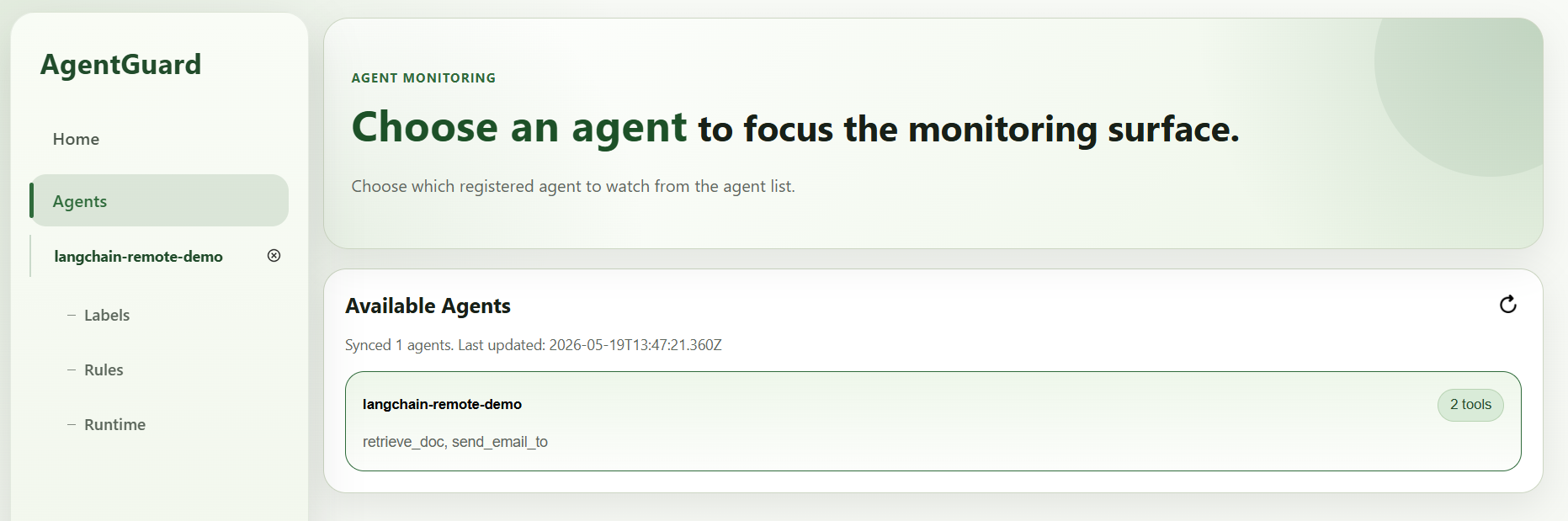
The system automatically detects that the agent has two built-in tools: retrieve_doc and send_email_to.
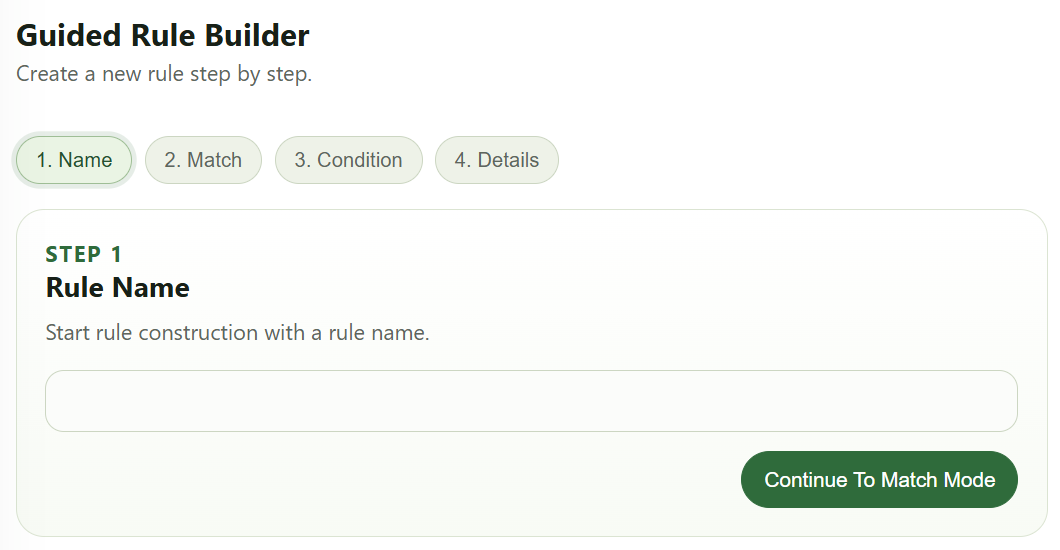
Click the Rules tab on the left to enter the policy configuration interface. We want to ensure that the document retrieved by retrieve_doc with id 0 (a simulated confidential file) can only be sent to admin@example.com. As shown below, the UI guides you through four steps, starting with entering a rule name:
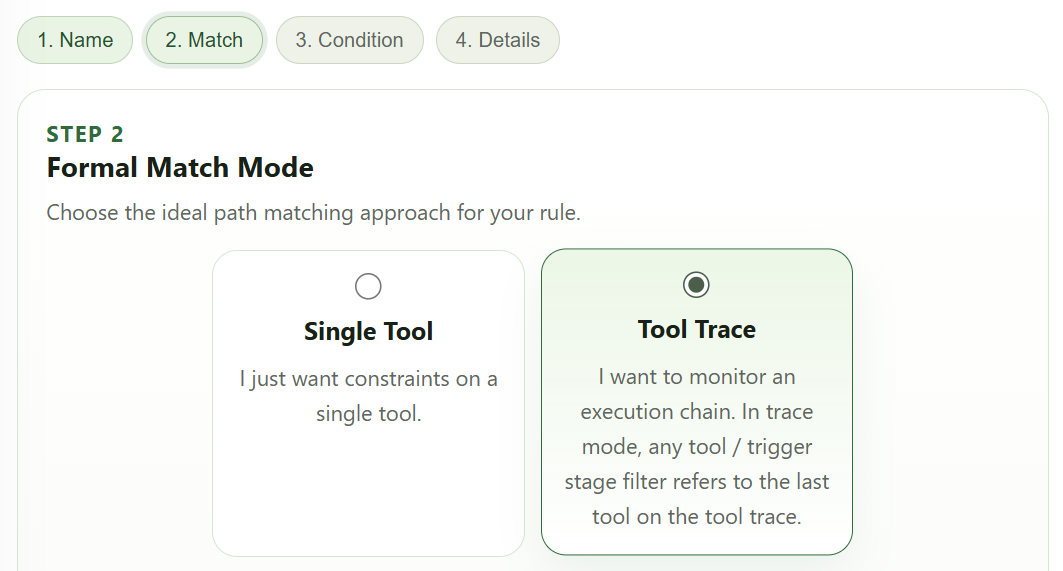
After entering the rule name, step 2 asks you to choose between a single-tool rule and a chain-path rule. Our policy targets the combined behavior of two tools, which is a typical chain-path rule, so select Tool Trace in the Formal Match Mode dropdown:
Next, in the Trace format section at the bottom of the page, use the + button to add three placeholders: Tool A, ...?, and Tool C. The ...? placeholder means there can be zero or more tool calls between Tool A and Tool C. After adding them, it looks like this:
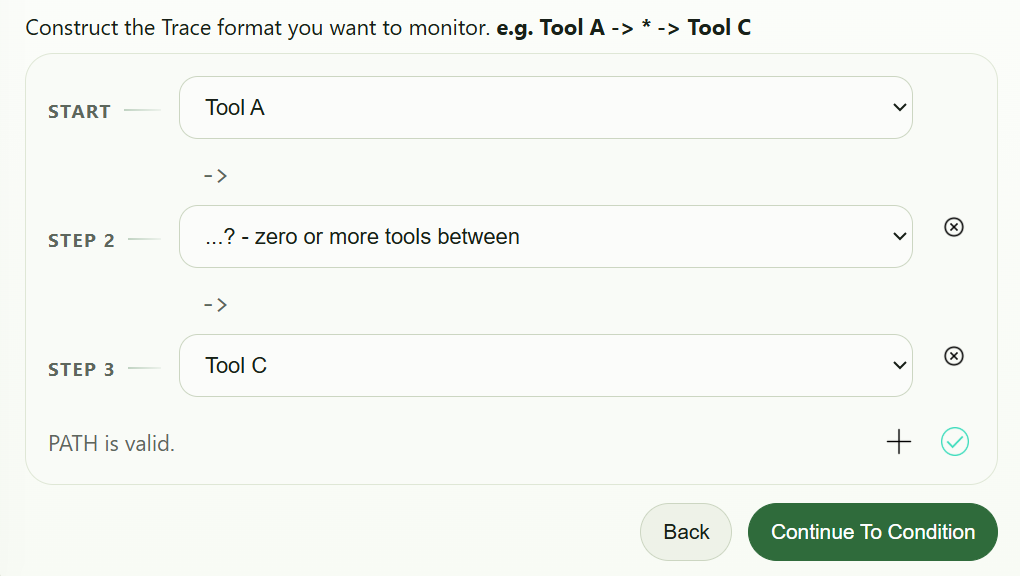
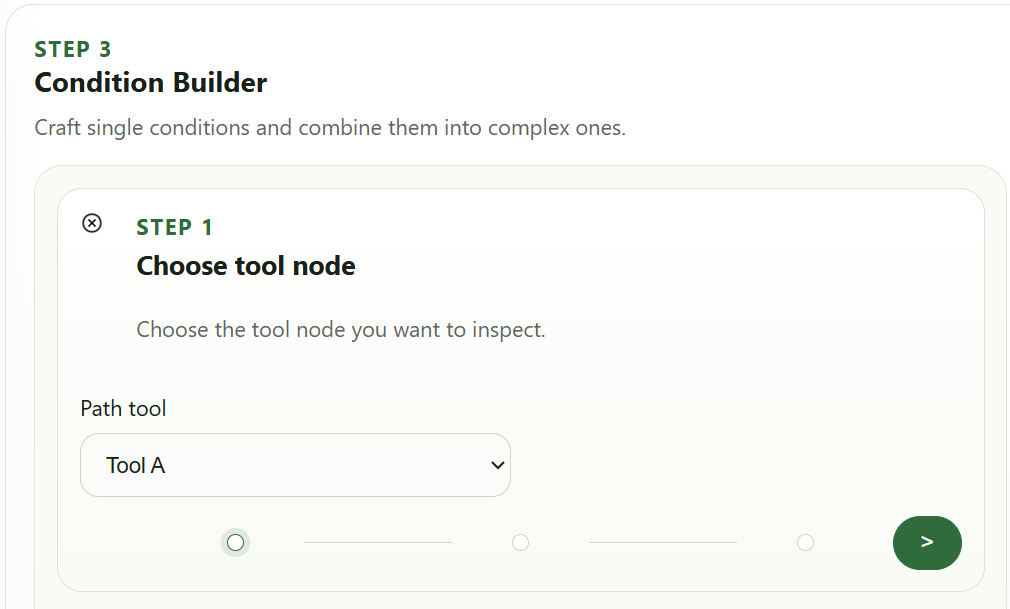
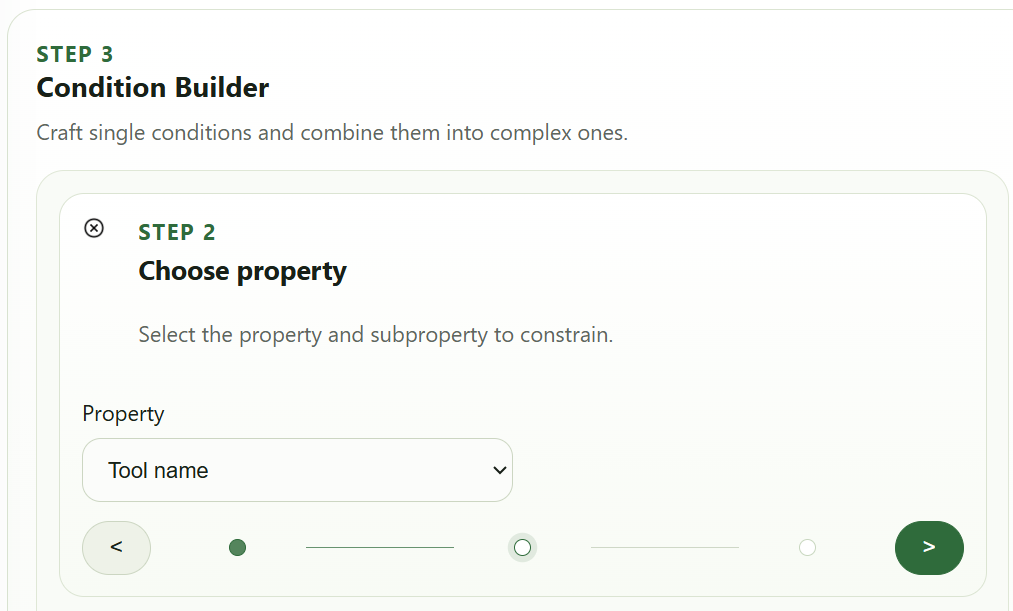
Once the Trace format is set, click the green checkmark at the bottom right to confirm, then click Continue to Condition to proceed to step 3. Now we need to bind Tool A and Tool C to specific tools and parameters. For Tool A, the tool name is retrieve_doc. Press the + button in the Saved Conditions section, and the UI will walk you through three sub-steps to build a constraint:
(1) Select the tool to constrain: Tool A
(2) Select the property to constrain: Tool name
(3) Choose the comparison operator == and the target value retrieve_doc
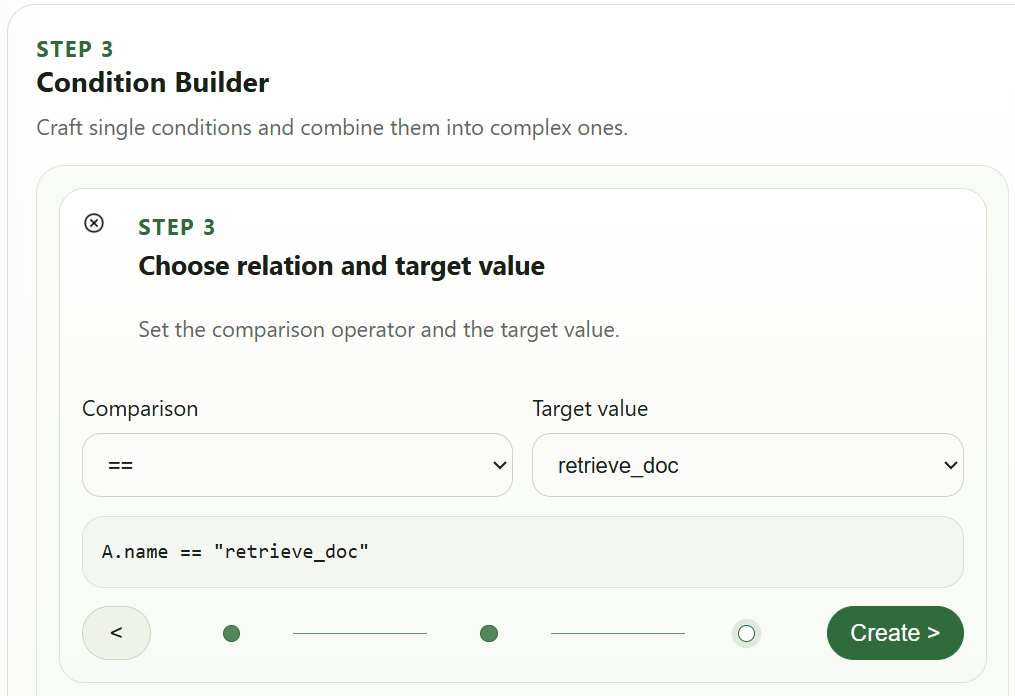
Click the Create > button, and the system will create a constraint condition. Follow the same steps to bind Tool C to the tool name send_email_to.
After binding the tool names, the next step is to constrain the tool parameter values:
retrieve_doctool: parameterid == 0send_email_totool: parameteraddr != "admin@example.com"
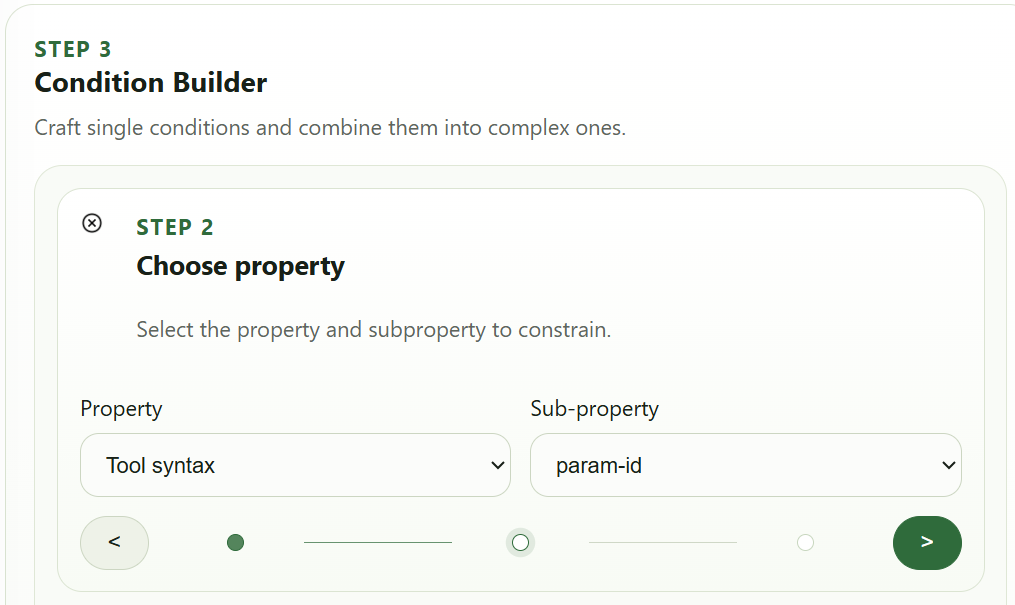
Let's walk through the retrieve_doc.id parameter as an example. Again, press the + button in Saved Conditions and select Tool A in the first sub-step. In the second sub-step, since we are constraining a tool parameter rather than a tool name, select Tool syntax from the Property dropdown. A Sub-property dropdown will appear on the right — select param-id (where param- is the parameter name prefix and the rest is the actual parameter name id):
Then choose the comparison operator == and the constraint value 0:
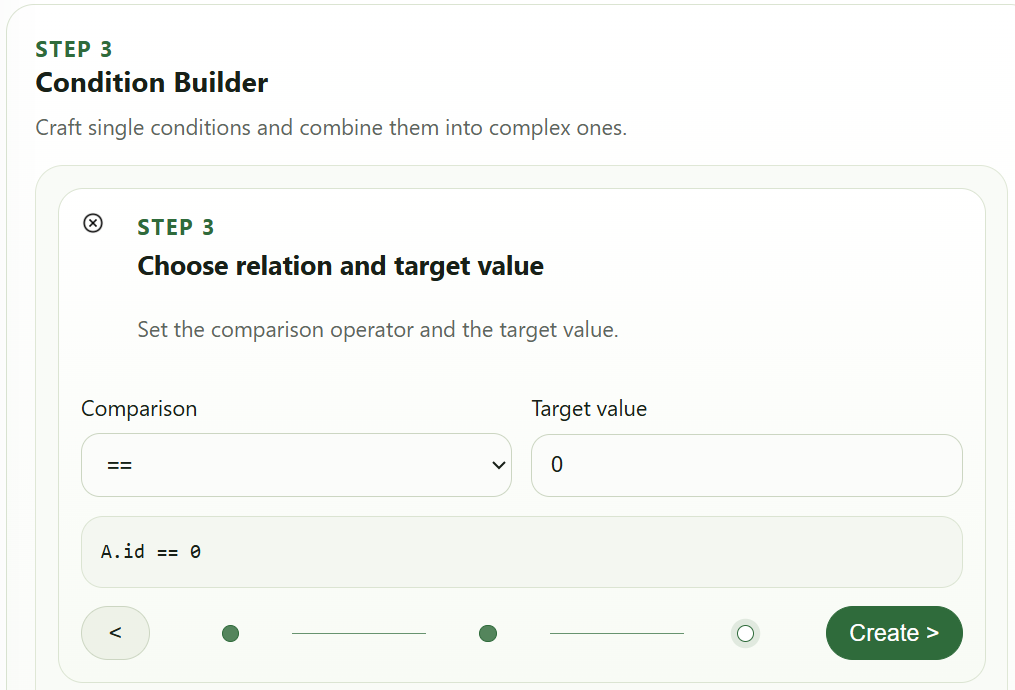
The send_email_to.addr constraint is set up similarly, except you should choose != as the comparison operator.
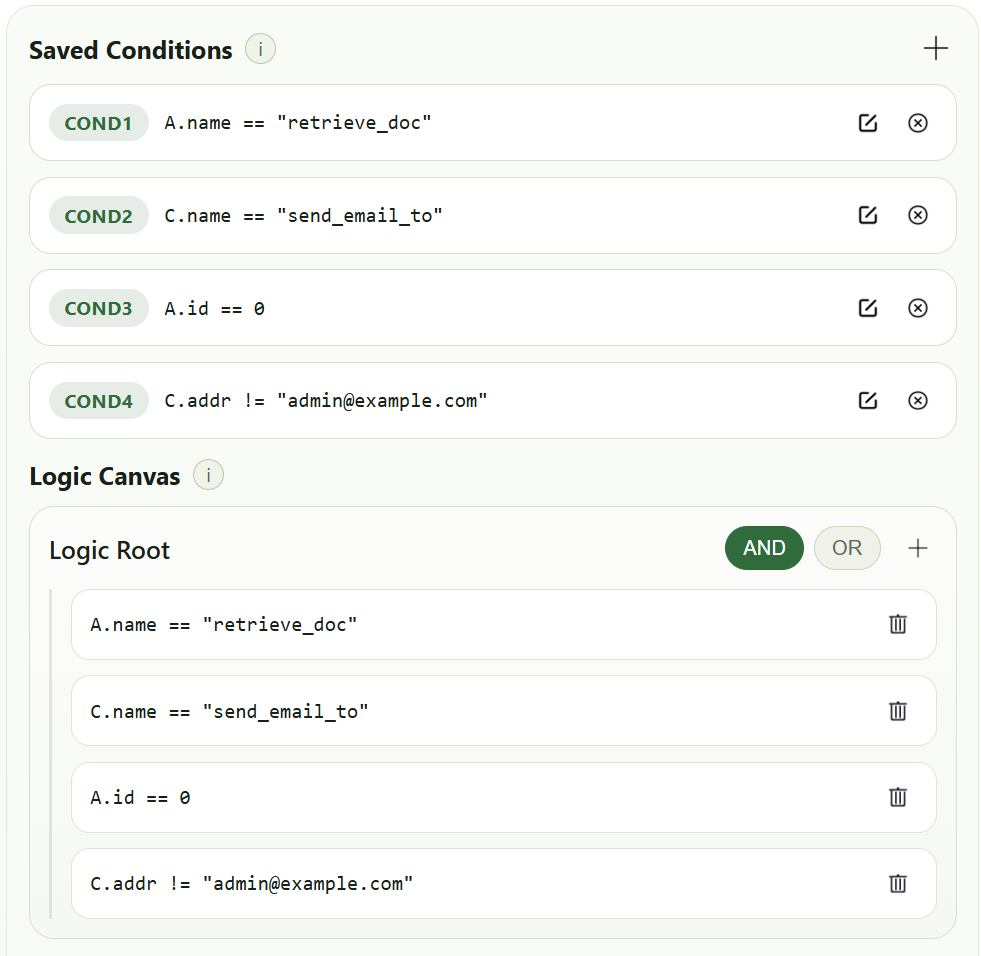
After the above steps, you will have four constraints in Saved Conditions. All four must be satisfied simultaneously to block the agent's execution, so in the Logic Canvas, connect them with AND:
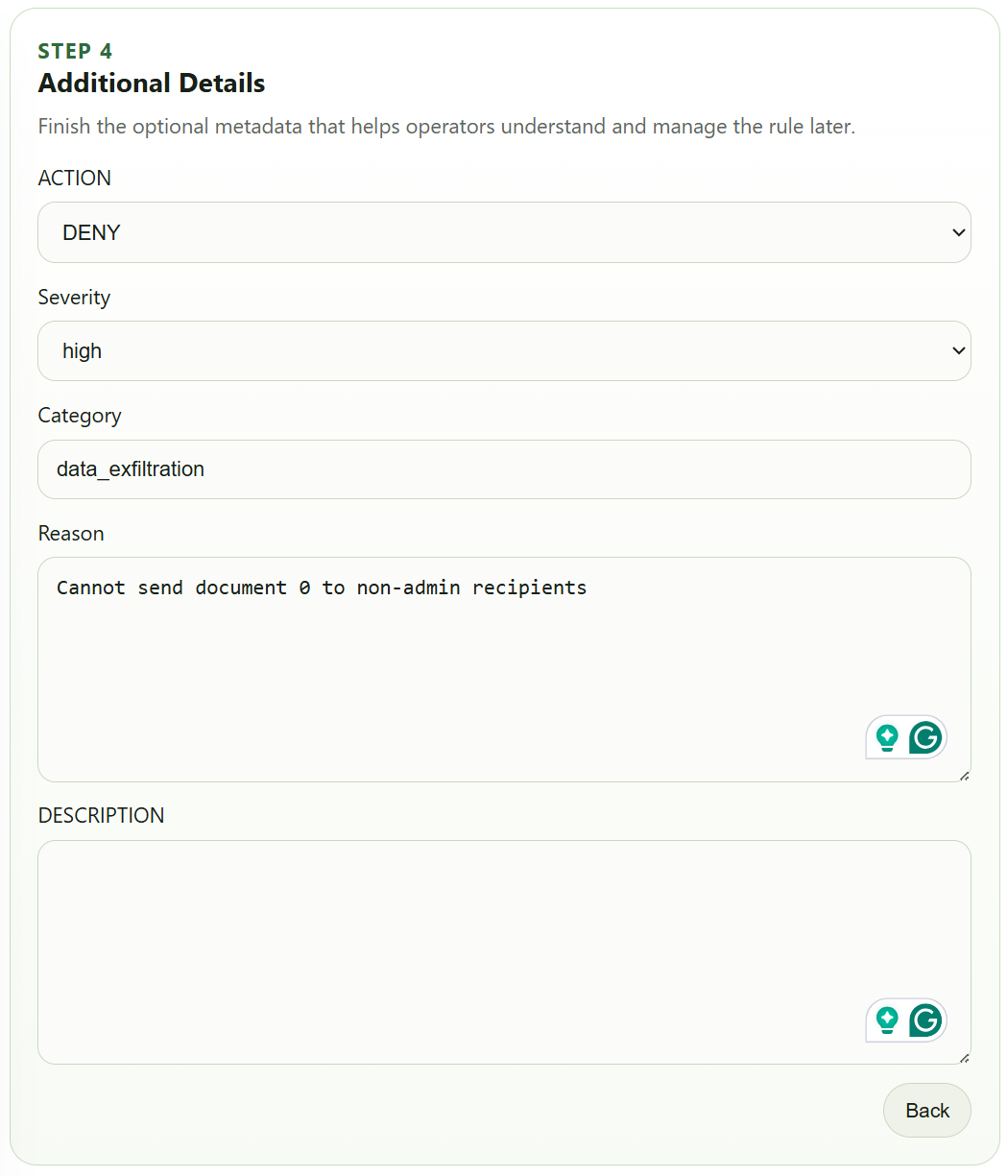
The final step is to configure the action to take when the policy matches, along with policy metadata. Since we want to block execution on match, set ACTION to DENY. The remaining fields — Severity, Category, and Reason — can be filled in as needed:
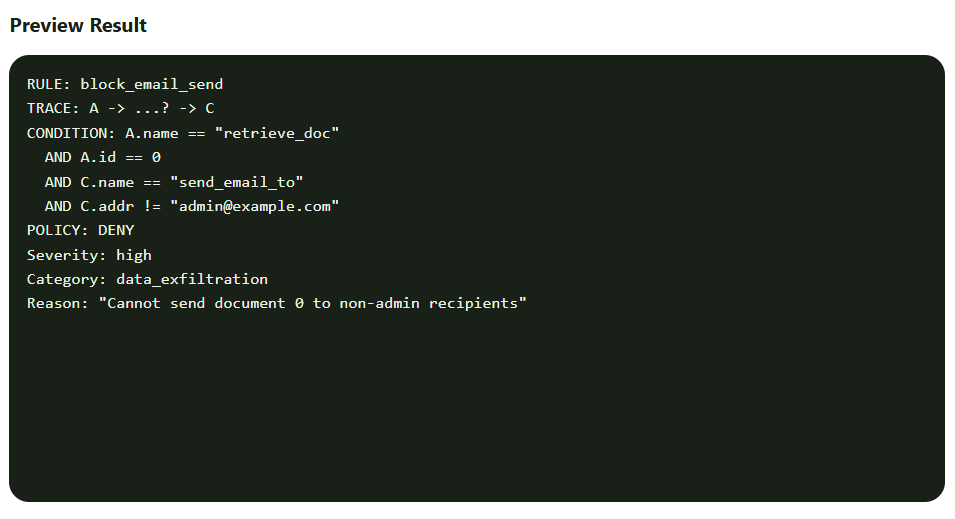
Notice that as you configure the policy interactively, the system generates a preview of the DSL in parallel:
Once everything looks correct, click the Generate Rule button. The system will create the policy, but it won't take effect until you manually Publish it in the Rule List.
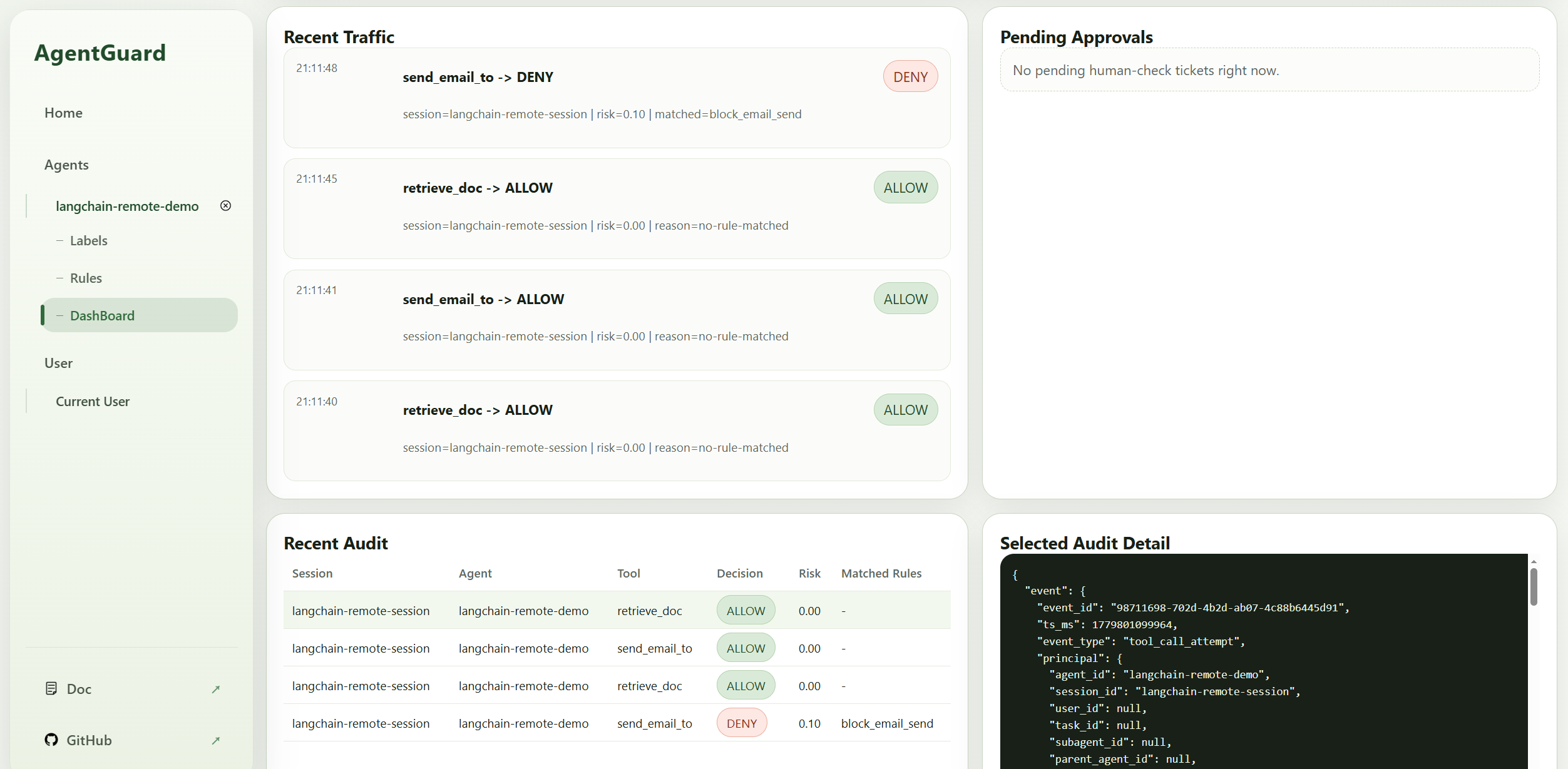
You can monitor agent runtime status and policy enforcement under the DashBoard tab:
Note: While the UI covers the vast majority of policy expressions, some DSL syntax features are not yet exposed in the UI. We will continue to improve coverage in future updates.